How to redact a screenshot on iPhone
A useful screenshot can include an email address or account detail you did not intend to send. On iPhone, Cloakshot can scan the image, let you adjust the masks, and export a separate PNG while keeping the original.
On this page
Keep the request, cover the private fields
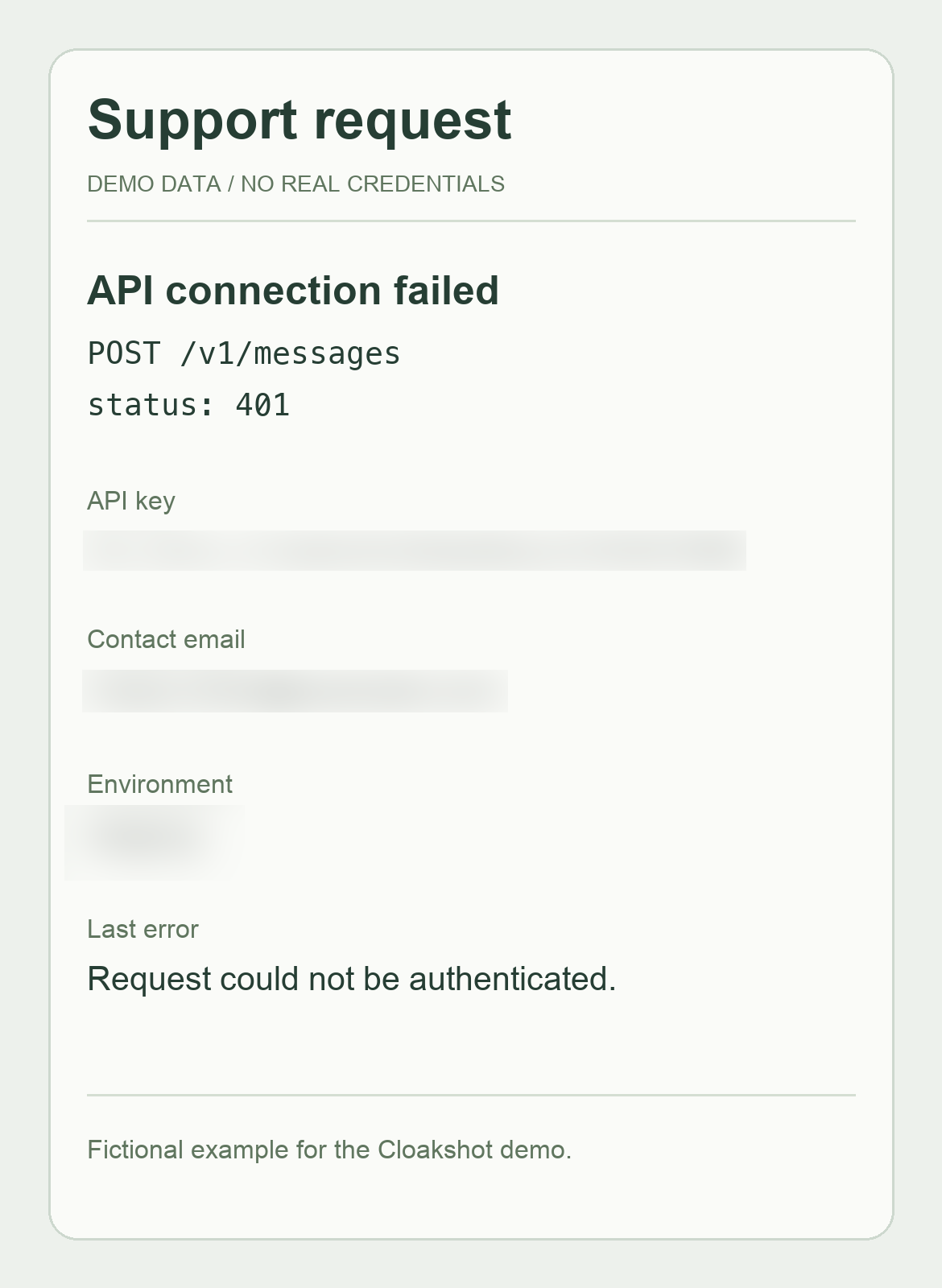
The example used here is a fictional support request. It shows a failed API connection, an example key, a contact email and an environment label. The recipient needs the failed request and status code to understand the problem.
Cloakshot exported the copy on the right with the key, email and environment covered. This example uses Blur. For a real credential, choose Solid black; the API-key guide shows the steps.
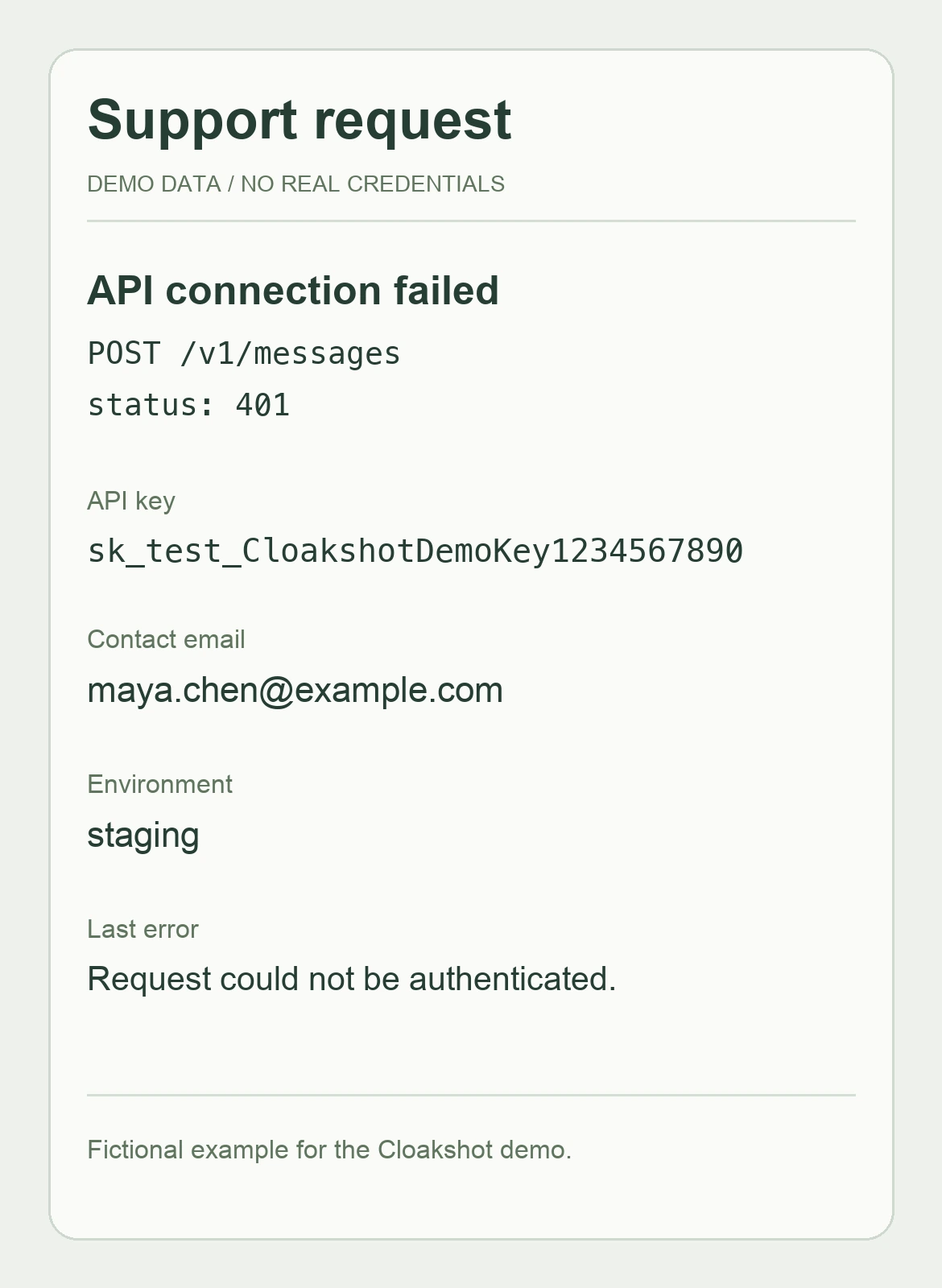
Made-up key and contact details are visible.
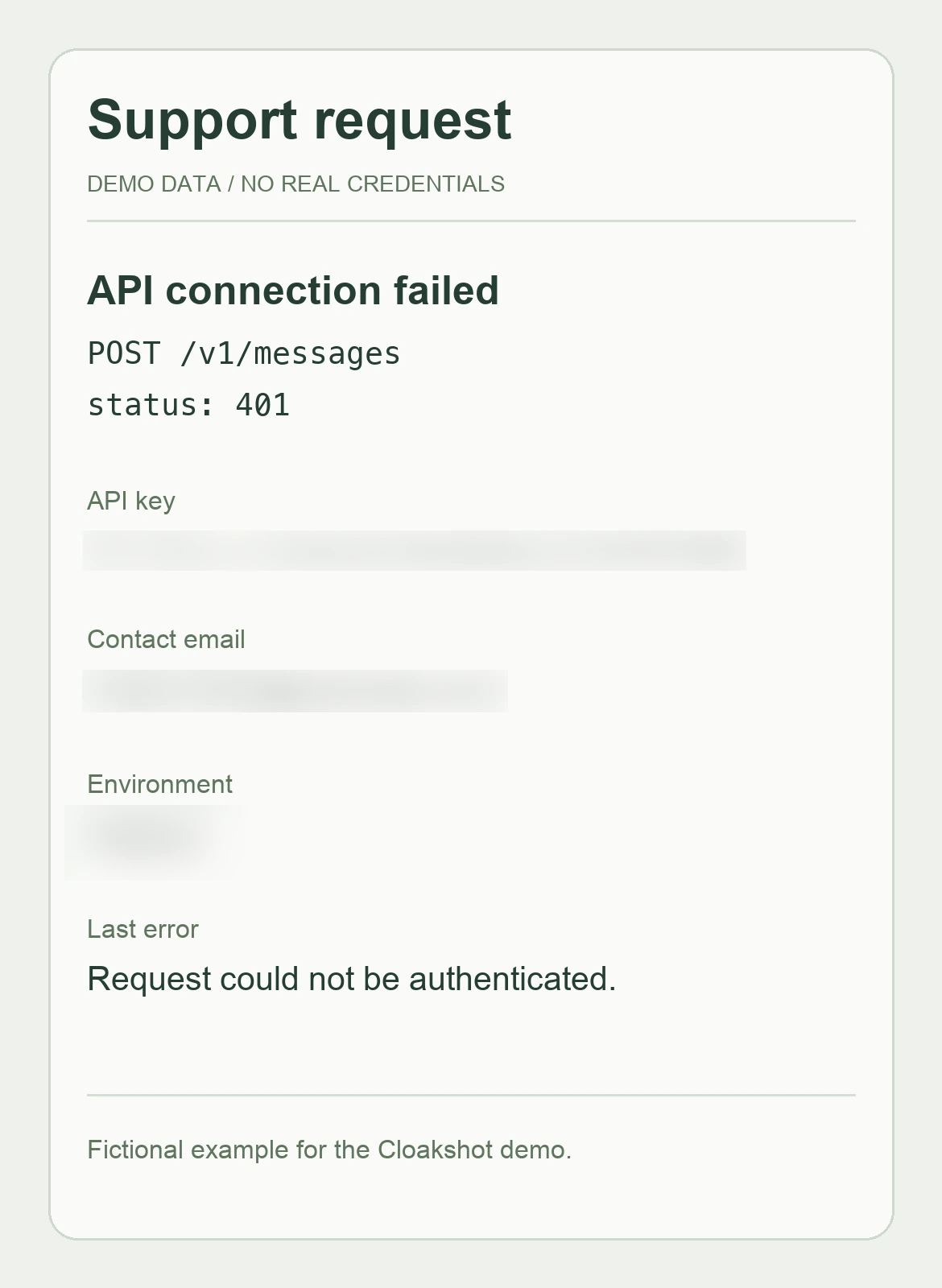
Private fields are blurred; the error stays readable.
Open either image to inspect the full-size version.
Open the image from Cloakshot or Photos
- Tap Choose images and select the screenshot.
- Open the imported image from Local album.
- On Review, select the suggestions you want and use Edit details to adjust the masks.
You can also start in Photos. Open one image, tap Share and choose Cloakshot. The iOS extension accepts one PNG, JPEG or HEIC image at a time. If Cloakshot is missing from the Share Sheet, use Choose images inside the app.
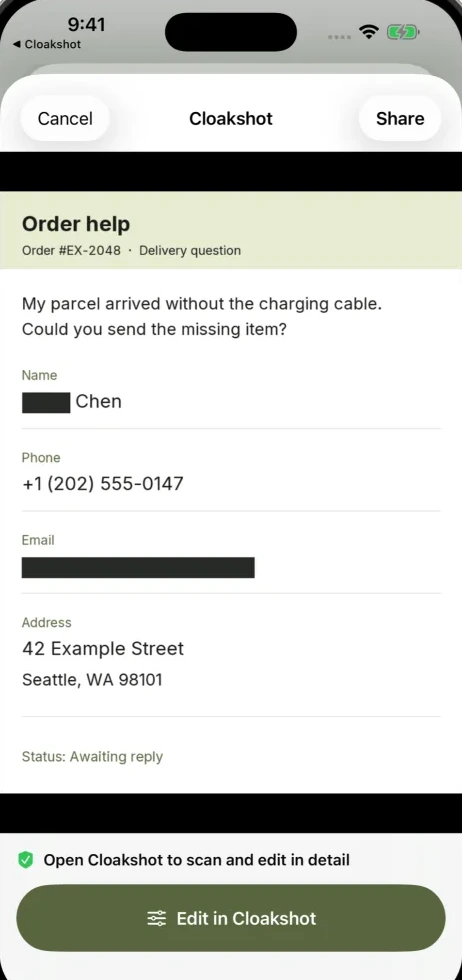
The extension has a simpler review. Tap Edit in Cloakshot to open the full scan and mask editor. Use that route when you need to adjust text selections or add a mask.
Decide which suggestions fit this message
On Review, look through Suggested edits. Select the fields you want to hide. Leave useful information visible when the recipient needs it. For the support example, that includes POST /v1/messages, status 401 and the last error.
A private support ticket and a public forum post may need different details. An order number can help a verified support team locate an order, while an unrelated public reader usually does not need it. Make that decision before accepting every suggestion.
Look beyond the highlighted areas. A notification, conversation title or address lower down the image may still be visible. Detection can miss a detail, and a suggestion can cover something you meant to keep.
Adjust a mask without covering the useful text
Tap Edit details and zoom in. Select a mask, then move or resize it so the complete private value is covered. Leave enough space at the edges to include the first and last characters.
Use Add mask for a missed field. The order example below has the name, phone and email covered, but the address is still readable. Before posting it publicly, add masks for the address lines too.
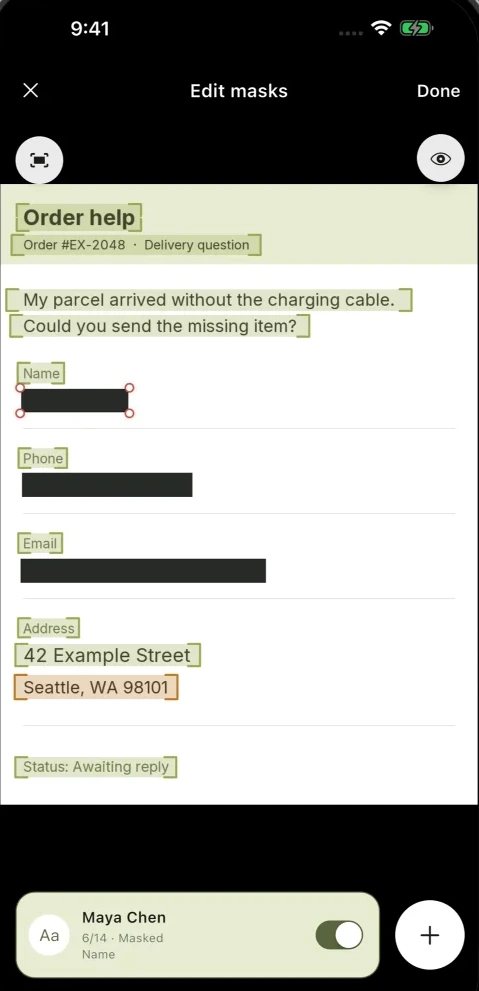
If you only need to cover a surname, use the word and character controls. Cover passwords and keys in full rather than treating them as names that can safely remain partly visible.
Export, then inspect that file
Return to Review, choose any GPS or photo-metadata removal options you need, and tap Export. The main app writes the selected masks into a separate PNG, checks the selected edits and scans that copy again before opening the system Share menu.
Choose the destination app, or save the image first. If you save it, open the saved file and zoom in on the covered fields. Check wrapped lines and the rest of the screenshot as well. The automatic checks do not replace that final read.
When attaching the screenshot later, select the exported PNG. The original in Photos is unchanged. You can open the original exported PNG to inspect the result used in this guide.
What is free, and what stays on the phone?
Scanning, reviewing suggestions and editing masks are free. Saving or sharing the redacted copy requires an active eligible trial or Cloakshot Pro Lifetime, a one-time purchase.
Eligible devices can start a 14-day trial from the Cloakshot Pro screen. It needs an online device check, but no account or payment details, and it does not renew automatically. Check that screen for availability on your device.
Images and scan results are processed on your device and are not uploaded by Cloakshot. Trial checks, purchases and purchase restoration use the network. The Privacy Policy explains those connections.