
How to hide API keys in screenshots
A failed request can explain a bug. The key that authenticated it usually adds nothing to the explanation. Before posting a screenshot, cover the full credential and look for the same value elsewhere in the image.
On this page
Choose the information the recipient needs
For an authentication error, keep the status code, error message, request method and relevant setting names. A support engineer may need to see that a request returned 401 Unauthorized. They do not need your live bearer token to read that error.
The example below uses a made-up credential. It illustrates which text to keep in a bug report.
Before
POST /v1/example
Status: 401 Unauthorized
Authorization: Bearer EXAMPLE_NOT_A_REAL_KEY
After
POST /v1/example
Status: 401 Unauthorized
Authorization: Bearer value covered
Private hostnames, email addresses, account IDs and file paths may need their own decision. Leave them visible only when they are relevant to the recipient and appropriate for that channel.
Find every copy of the credential
A key can appear in a settings field and again in a request or log line. Read the whole image before covering the most obvious field.
| Where to look | What to do |
|---|---|
| Request headers | Cover: The complete Authorization or token value Keep if useful: Header name, method, status code |
| Terminal commands and logs | Cover: Tokens, passwords, connection-string credentials Keep if useful: Command structure and error message |
| Address bar or query string | Cover: Values such as api_key= or token= Keep if useful: A relevant path with private values removed |
| Settings and configuration | Cover: Keys, passwords and private account details Keep if useful: Setting names and non-sensitive options |
| Wrapped text or QR codes | Cover: The rest of a credential on another line or in a code Keep if useful: Only the information the recipient needs |
A scan with no findings is not evidence that the image contains no credentials. Unusual formats and visually broken lines may need a manual mask.
Use a solid mask over the complete value
Before opening the image for review, go to Settings → Detection and choose Solid black. Import the image with Choose images, or send it from a compatible Share menu.
On iPhone, choose Edit in Cloakshot from the Share extension to use the full scan and editor. On Android, sharing an image to Cloakshot opens the main app.
Review the suggestions, then open Edit details. Resize the mask to cover the entire credential, including any wrapped line. Add a mask for an overlooked copy. Keep the label if it helps explain which field is involved.
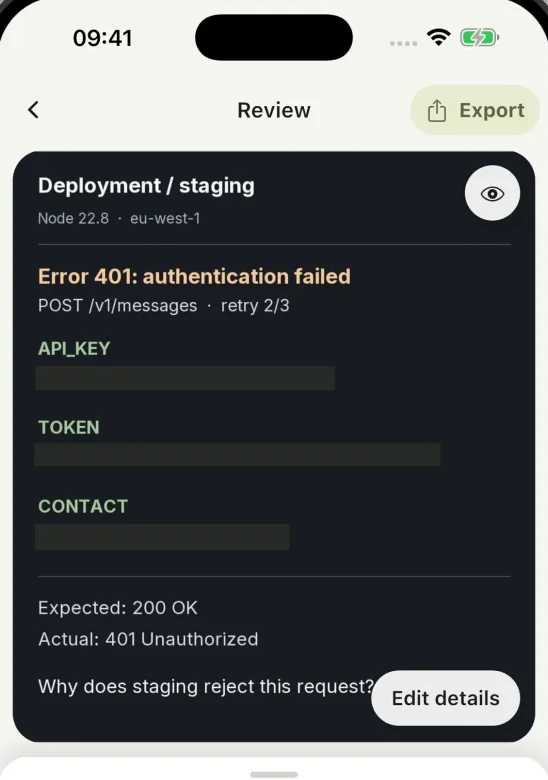
Do not use partial-name selection as a reason to leave a real key's prefix or suffix visible. Cover the value in full. Zoom in at both ends before returning to Review.
Inspect the exported copy
Tap Export in the main app. Cloakshot writes the masks into a separate PNG, checks the selected edits and scans the exported copy for remaining high-risk findings. It can catch a remaining finding, but you should still read the copy yourself.
If you save the file, open it and inspect the covered values, any repeated copies and the surrounding image. Ensure the status code and error message are still readable. Then attach that PNG to the issue or message.
The original remains in your gallery. Selecting it later would send the unredacted version, even though you previously exported a copy.
Scanning and mask editing are free. Export requires an active eligible trial or the one-time Pro Lifetime purchase. No account is needed, and Cloakshot does not upload the image or scan results.
If the real key was already shared
Covering a later copy does not change the image you already sent. Revoke or rotate the exposed credential through its provider, update the applications that use it, and follow the provider's instructions for checking recent usage.
Removing a post or file does not revoke the key. GitHub's sensitive-data removal guidance explains why credential revocation or rotation comes first for secrets exposed in a repository.
Once the credential is handled, replace or remove the old screenshot where possible. Create a redacted copy for any further discussion, or reproduce the issue with made-up values.