How to redact a screenshot on Android
On Android, you can send a screenshot from your gallery to Cloakshot, cover the details you choose, and continue from the Android Share menu with a redacted copy. The original image stays in your gallery.
On this page
Share the image file from your gallery
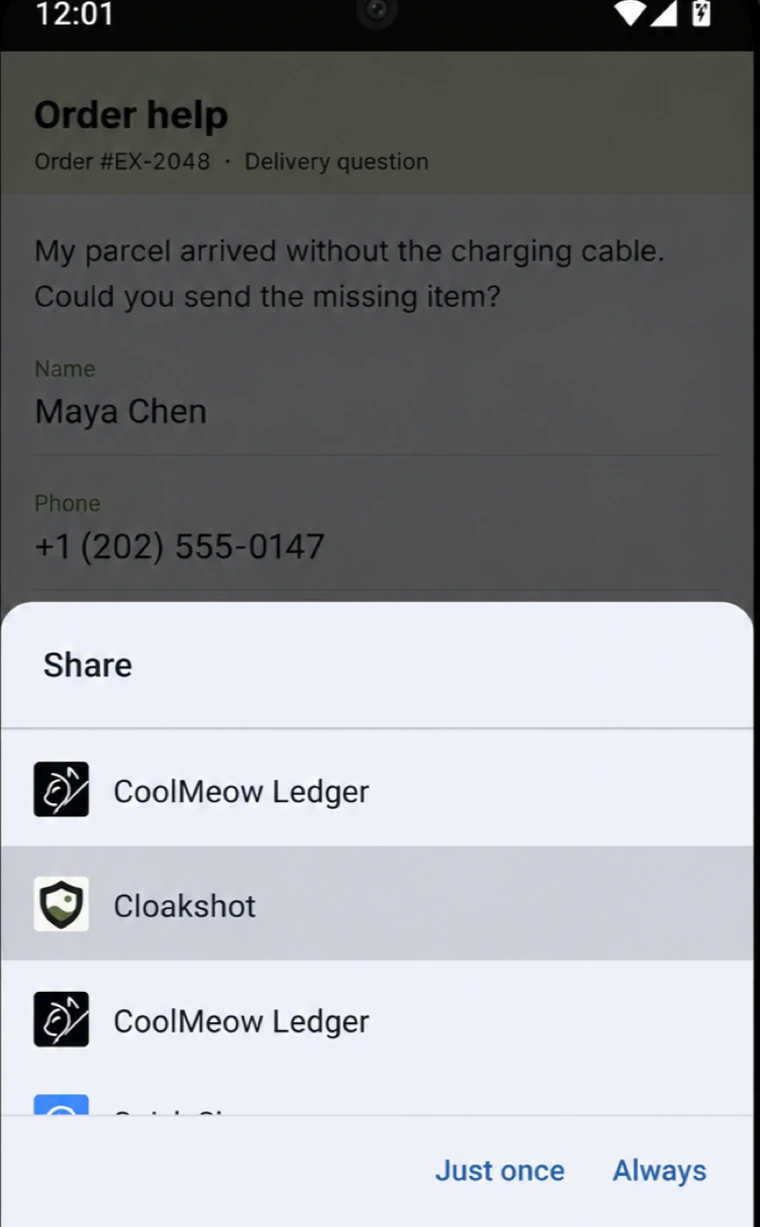
Open one screenshot in your gallery app, tap Share and choose Cloakshot. A compatible Share menu sends the image to the main app for review. Gallery apps arrange this menu differently, so the icon may be in an expanded app list.
The Android Share panel below lists Cloakshot as a destination. If you are trying it once, Just once lets you open the file without making it your default action.
If your gallery only shares a cloud-photo link, that may not pass an image file to the editor. Open Cloakshot, tap Choose images and select the screenshot itself instead. Open the imported image from Local album.
Keep the part that explains the problem
The example order conversation says a parcel arrived without its charging cable. That sentence explains the problem. The account name, phone number and email are not needed to discuss the missing item in a public post.
On Review, select the relevant Suggested edits. Turn off a suggestion if it hides useful context. Decide separately whether the recipient needs an order number or a location.
Before moving on, read the notification bar, account labels and lower part of the image. A screenshot can contain more information than the main message.
Fix the mask and cover anything missed
Tap Edit details. Select a mask and zoom in before moving or resizing it. The handles in the Android editor let you cover the full value while leaving nearby words readable.
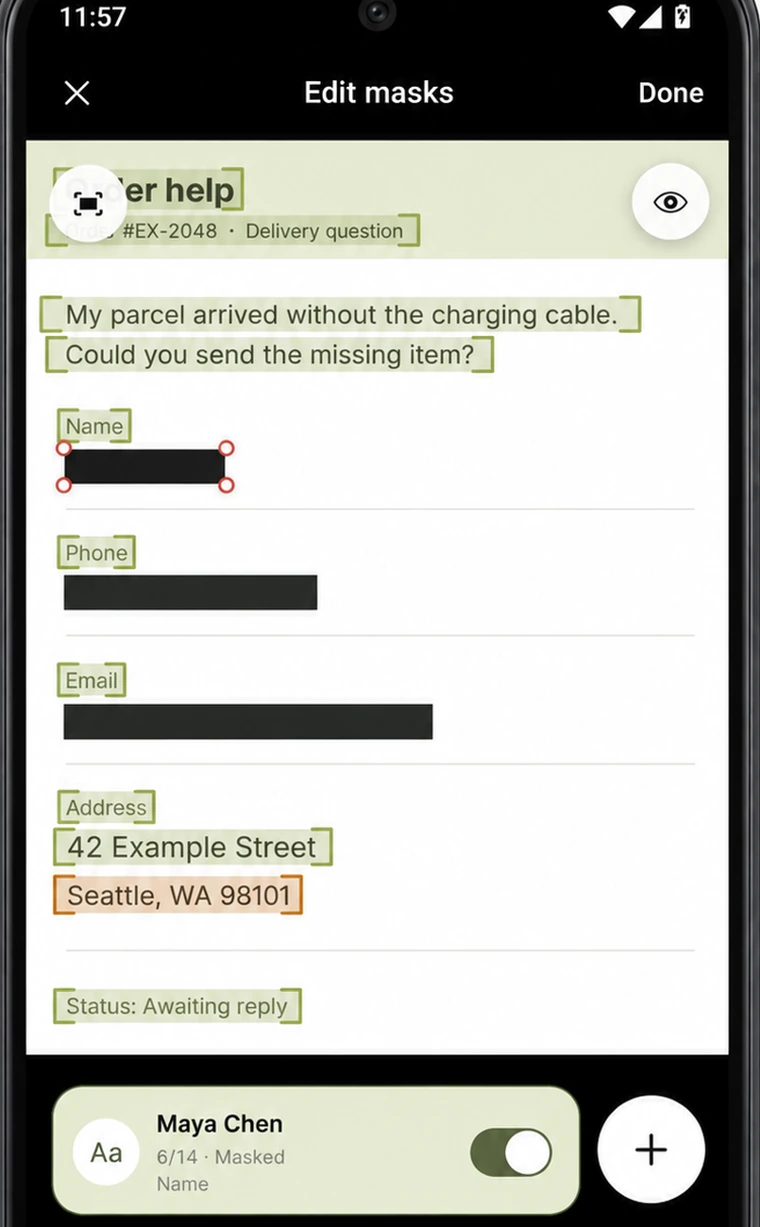
For a public copy of this order conversation, add masks for the street and city lines as well as the contact fields. Use Add mask if they were not included in the suggestions. Tap Done to return to Review.
A key or password should be covered in full. You can select Solid black under Settings → Detection before opening a credential image. The API-key example shows what context to keep.
Keep a first name and hide a surname
For some messages, you may want the first name to remain visible. Cloakshot's text controls can select whole words or individual characters. In the Android example below, the four letters in Chen are selected while Maya stays visible.
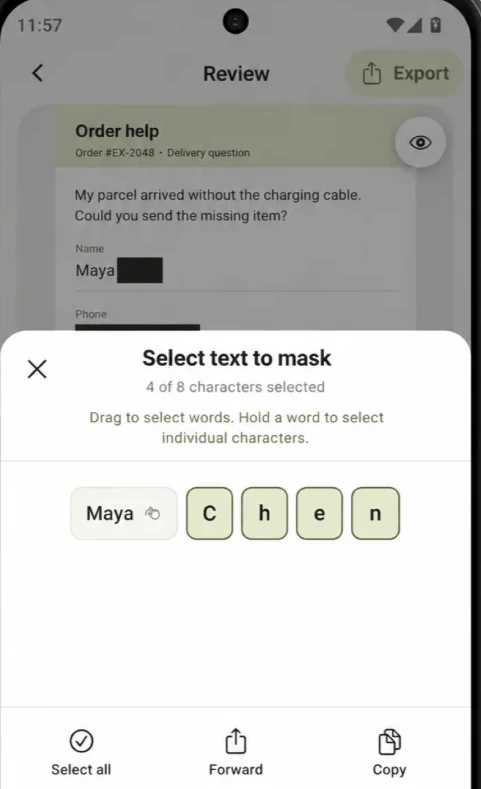
Partial name masking does not make a conversation anonymous if the address, avatar or surrounding messages still identify someone. Review those details for the audience you intend to send it to.
Send the new PNG through Android's Share menu
On Review, choose the metadata-removal options you need, then tap Export. Cloakshot creates a separate PNG with the selected masks written into the image. The main app checks the edits and rescans the copy before opening Android's Share menu.
Choose the destination app or a file-saving option provided by your phone. The available choices depend on installed apps. If you save the file first, open that file and inspect the masks at full size before attaching it.
For the order example, the finished copy should keep the missing-cable message readable and cover the contact details you chose. Verify that the attachment is the new PNG. The original screenshot remains unchanged, so it is still possible to select it by mistake later.
Export access and Android processing
You can scan and edit without paying or creating an account. Export needs an active trial or Cloakshot Pro Lifetime. Pro Lifetime is a one-time purchase.
Eligible Android devices can start a 14-day trial after an online device check. It requires no payment details and does not renew automatically. Purchases and restoring access also need an internet connection.
Images and scan results stay on your device. Android's scanning SDK may send diagnostic and usage metrics to Google. See the Privacy Policy for the details.